"Display Driver Stopped Responding and Has Recovered": What It Means and How to Find the Cause
What Windows is actually telling you when the screen flickers and this message appears, what the message does not tell you, and how to narrow down the real cause.
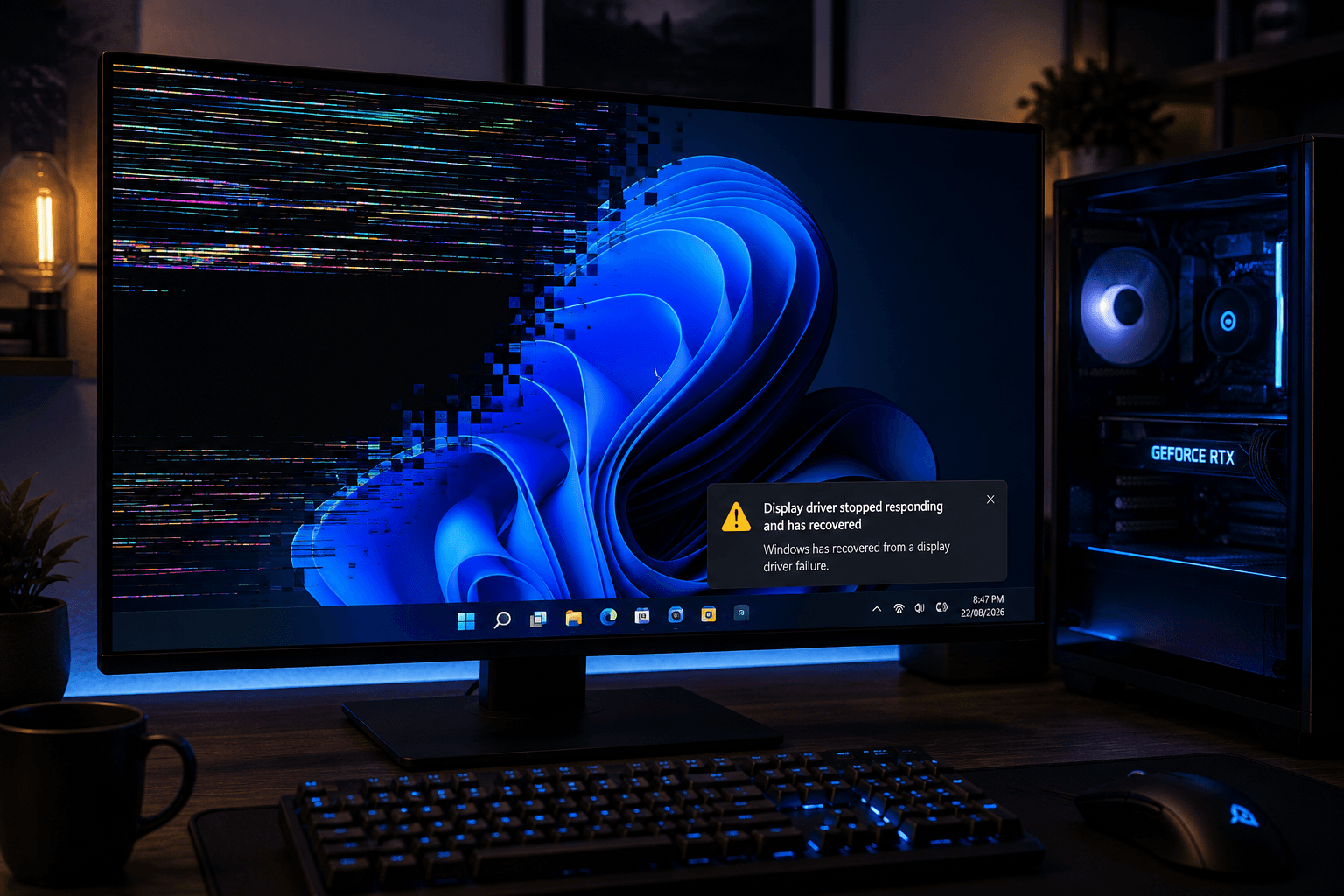
Your screen goes black for a second, comes back, and Windows tells you the display driver stopped responding and has recovered. Sometimes the game you were playing is still running. Sometimes it is a black window that has to be restarted. Sometimes it happens once a month and sometimes three times an hour.
Before you start changing things, it is worth understanding exactly what that message does and does not say — because almost every bad piece of advice about this error comes from misreading it.
What Windows actually did
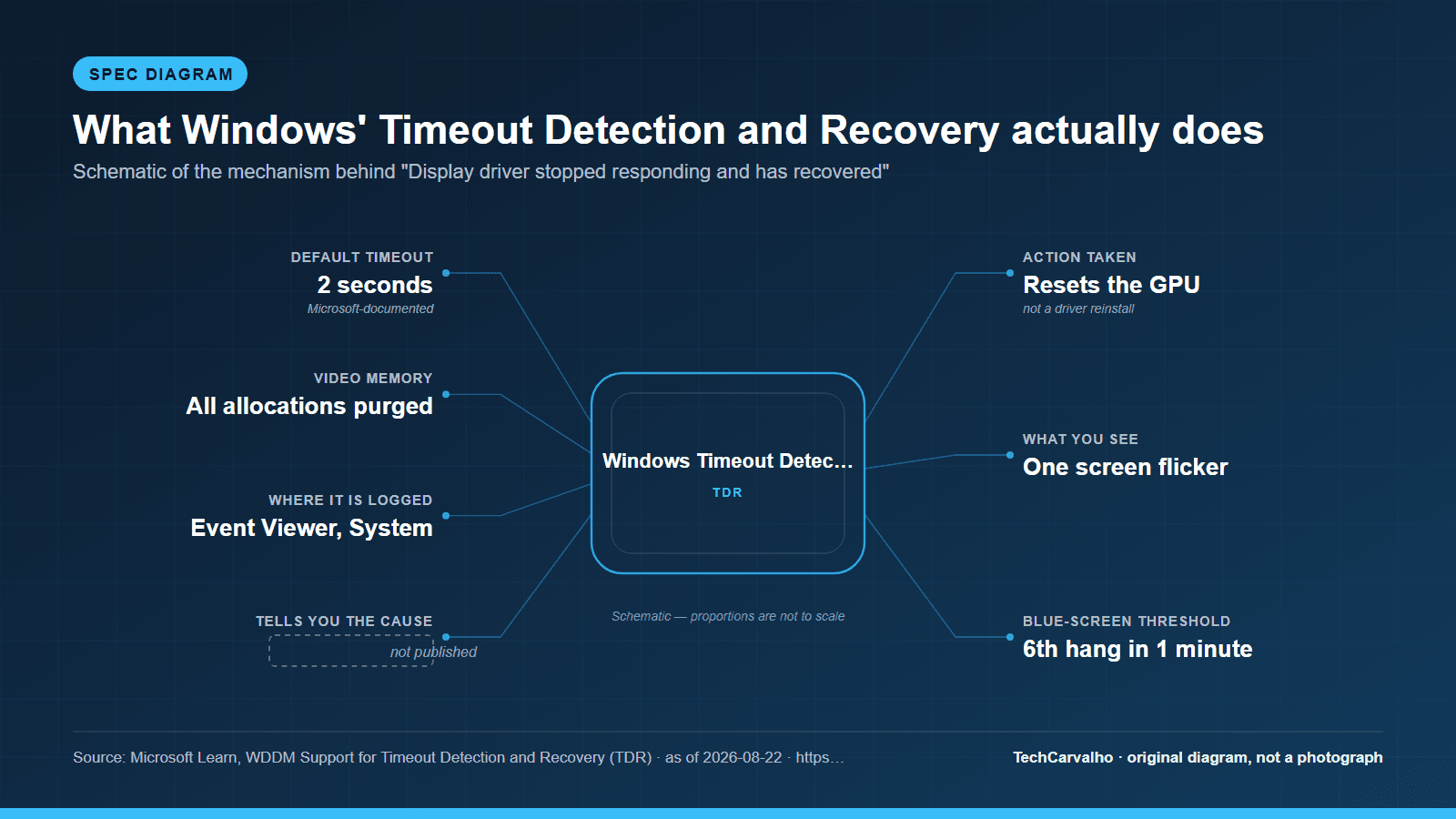
The mechanism is called Timeout Detection and Recovery, and Microsoft documents it precisely: "TDR is a feature in Windows that detects when the graphics card takes longer than expected to complete an operation. It then resets the graphics card to prevent the entire system from becoming unresponsive."
The specifics are worth having:
- The GPU scheduler inside Windows watches how long the graphics card takes on a task. "The default timeout period in Windows is two seconds." If the GPU cannot complete or be interrupted within that window, Windows declares it frozen.
- Recovery is a genuine reset. Microsoft describes the video memory manager purging "all allocations from video memory" and the driver resetting the GPU hardware state.
- "The only visible artifact from hang detection to recovery is a screen flicker" — that flicker is the whole event, from your side.
- Windows then "displays an informational message to the end user, saying 'Display driver stopped responding and has recovered'" and logs it in Event Viewer.
- Some applications survive this cleanly. Microsoft notes that "some legacy DirectX applications might just render black at the end of this recovery, which requires the end user to restart these applications."
And there is a threshold at which Windows stops being forgiving. By Microsoft's account, the OS "bug-checks the computer on the sixth (or more) GPU hang when it detects that five (5) or more GPU hangs (0x117) and subsequent recoveries occur within one (1) minute." In other words: if you are getting a blue screen rather than a recovery message, that is the same underlying event happening repeatedly, not a different problem.
Here is the part that matters most. The message tells you that the GPU did not respond within two seconds. It tells you nothing whatsoever about why. It is a symptom report, not a diagnosis — which is exactly why "reinstall your driver" is the internet's default answer and exactly why it so often fails to help.
The one fix you should not start with
Microsoft documents a set of TDR registry keys for testing and debugging, including the timeout value itself. You will find a great many pages telling you to raise TdrDelay to make the error go away.
Be clear about what that does: it lengthens the window before Windows declares the GPU frozen. If your GPU is genuinely hanging because of an unstable overclock or failing hardware, raising the timeout does not stop it hanging — it stops Windows telling you, and converts a one-second flicker into a longer freeze. Microsoft's own framing of these keys is as a testing and debugging facility for driver developers, not as a consumer fix.
Editing the registry also carries real risk of breaking a working Windows install if you mistype a key. Treat this as a last resort, and only after you have ruled out the causes below — not as step one.
Work through the real causes in this order
The ordering here is by how often each turns out to be the cause and how cheap it is to rule out, cheapest first. Each step is reversible.
1. A driver installation that went wrong
The most common genuinely-fixable cause, and the cheapest to test. Driver files can be left in a mixed state after an in-place upgrade, especially if you have changed graphics cards or gone back and forth between driver versions.
Both NVIDIA's and AMD's own installers include a clean-installation option that removes the previous driver's settings and files before installing. Use the vendor's own installer and tick that option — it is the vendor-supported path and should be tried before any third-party removal tool. Note that a clean install resets your driver control-panel settings, including any per-game profiles you had configured.
If the problem started immediately after a driver update, the other half of this test is to install the previous driver version instead. A regression in one specific driver release is a real and recurring phenomenon; if the older version is stable, you have your answer and the fix is to wait for the next release.
2. Anything you have overclocked or undervolted
This includes things you may not think of as overclocking:
- A GPU core or memory offset in an overclocking utility, including one that loads automatically at startup.
- An undervolt. Undervolting is not inherently safer than overclocking — an insufficient voltage is exactly as unstable as an excessive clock, and it typically shows up as a driver timeout under specific loads rather than as an obvious crash.
- A memory XMP or EXPO profile. This one surprises people, because it is system RAM rather than the graphics card, but an unstable memory profile produces corrupted data that the GPU is asked to work with, and a hang is a normal consequence.
- A factory-overclocked card that is marginal in your particular case temperature.
The test is decisive and free: set everything back to stock — GPU offsets to zero, memory to its default JEDEC speed rather than XMP/EXPO — and see whether the error stops. If it does, you have found the cause, and the fix is a less aggressive setting rather than a registry edit.
3. Heat and dust
A GPU that throttles is not the same as a GPU that hangs, but sustained thermal problems and hangs frequently travel together, and dust-clogged heatsinks and fans are a genuinely common cause of a machine that has been fine for two years and now is not.
Watch GPU temperature during the workload that triggers the error, using the vendor's own software. If the error correlates with the card reaching its highest temperatures rather than occurring at random, clean the heatsink and fans and confirm case airflow before doing anything else.
4. Power delivery
This one is reasoning rather than a documented vendor claim, so treat it as a hypothesis to test rather than an established cause: modern high-end graphics cards draw power in short spikes well above their nominal rating, and a power supply that is marginal, ageing, or shared awkwardly across daisy-chained cables can fail to deliver during those spikes. The failure mode is a GPU that stops responding under exactly the heaviest moments of a load.
Two things are worth checking regardless of whether this is your cause, because both are also safety matters:
- Use separate PCIe power cables to each connector on the card rather than daisy-chaining one cable into two connectors, if your PSU has enough cables to do so.
- Check the connector is fully seated. On 12VHPWR / 12V-2x6 connectors in particular, a partially inserted connector is a documented fire risk, not merely a stability one. It should click, and it should be straight and fully home with no visible gap. Re-seat it with the system powered off and unplugged.
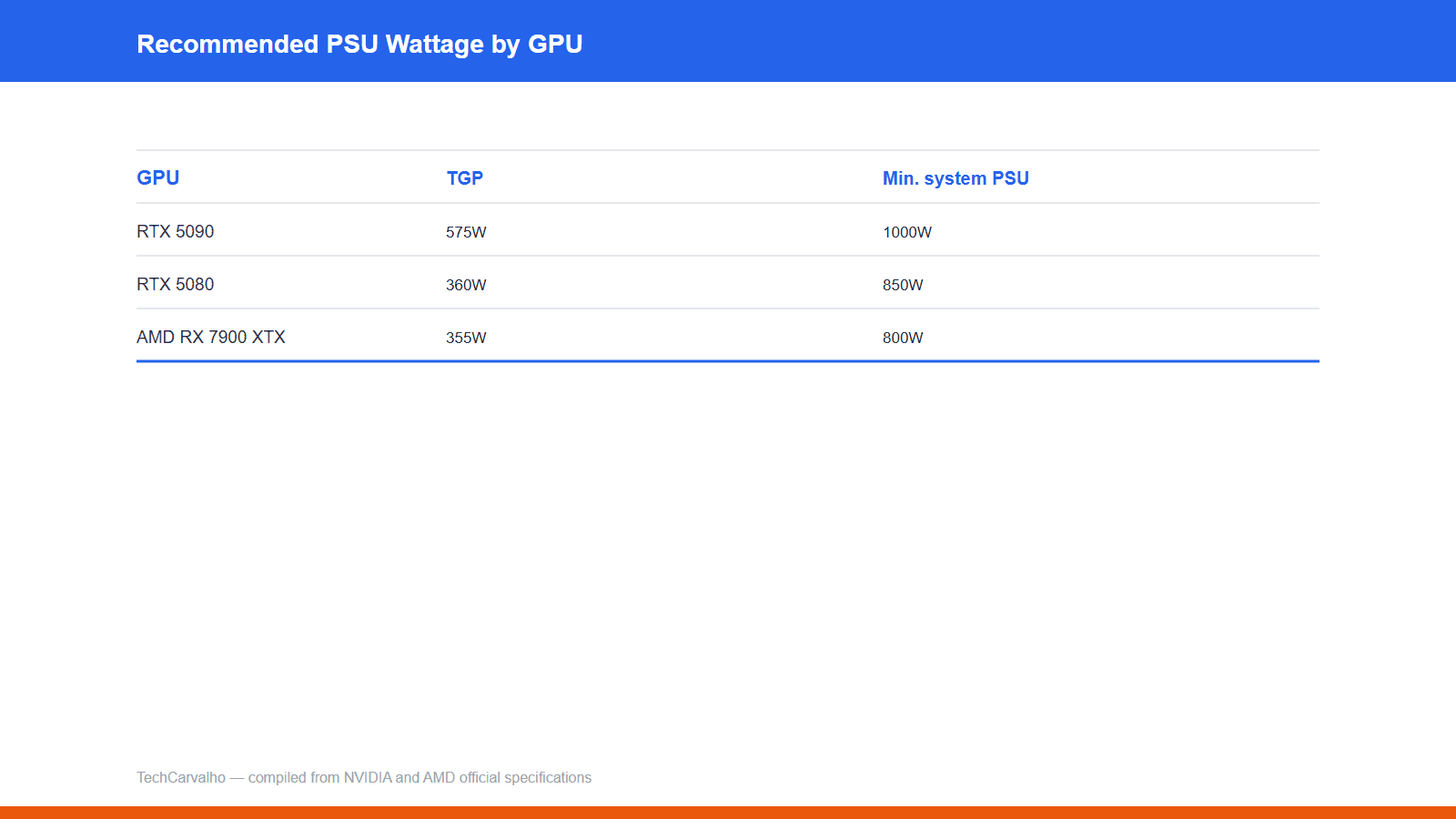
If you are diagnosing a new build that is hitting this error under load, our PSU wattage guide covers sizing properly.
5. The cable and the display
Cheap to test and occasionally the entire answer. A marginal DisplayPort or HDMI cable, particularly at high refresh rates and high resolutions, produces link errors that can present as display driver problems. Swap the cable for a known-good one rated for the resolution and refresh rate you are actually running, and try a different port on the card.
If you are running multiple monitors at mixed refresh rates, test with a single monitor connected. That is not a permanent fix, but it is a fast way to isolate whether the multi-display configuration is involved.
6. Failing hardware
If stock clocks, a clean driver install, good temperatures, sound power delivery and a known-good cable still leave you with regular timeouts, the honest answer is that the card itself may be faulty. Test it in another machine, or test another card in yours. This is the point at which a warranty claim is the correct next step, and the point at which raising TdrDelay would be actively harmful, because it would hide the evidence.
Reading the Event Viewer entry
Since Windows logs each occurrence, Event Viewer gives you something guesswork cannot: timestamps. Look under Windows Logs → System for the Display error events.
What you are looking for is a pattern. Do they cluster around a specific application? Around the moment a game loads a new area? Around startup, when an overclocking utility applies its profile? At random with the machine idle? A cause that only appears under load points at power, heat or clocks; one that appears at idle or on the desktop points much more strongly at the driver install or the display link.
When this does not matter to you
- It happened once, months ago, and never again. A single recovery event is Windows doing its job — the mechanism exists precisely so that a one-off GPU hang costs you a flicker instead of a reboot. There is nothing to fix.
- You get it only in one specific old game. Microsoft explicitly notes that some legacy DirectX applications render black after a recovery. A single ill-behaved application on a system that is otherwise entirely stable is an application problem, and changing system-wide settings to accommodate it is the wrong trade.
- You are seeing blue screens with a completely different stop code. This article is about 0x117-class GPU hangs. A different bug check is a different investigation.
The short version
The message means one thing: the GPU did not answer within two seconds and Windows reset it. Everything else is inference. Rule out the free, reversible causes in order — clean driver install, stock clocks including memory, temperatures, power connectors, cable — and only then consider that the hardware is at fault. Raising the timeout is not a fix; it is a way of not being told.
Sources
- Microsoft Learnprimary source
- Microsoft Learnprimary source
Tech Carvalho does not publish hands-on test results. This piece is written from the sources above and from public documentation. See our editorial policy.